To successfully eliminate Error 995, it is vital to understand why it triggers. In over 90% of cases, it stems from one of four primary anomalies:
Core Problem
1. Socket Leakage & Network Timeout: Your router or device network interface card (NIC) drops long-polling packets required by Roblox to verify your security token.
2. Corrupted DNS Cache: Your device attempts to connect to old or decommissioned Roblox cloud servers due to an outdated local DNS map.
3. Strict Firewalls and SSL/TLS Inspection: Antivirus programs or network firewalls mistake Roblox's high-frequency UDP data streams for a security threat and cut the connection.
4. Aggressive Mobile Aggregation: On mobile platforms, sudden switches between Wi-Fi bands (2.4GHz vs 5GHz) or cellular networks fragment active connection sessions.
STEP-BY-STEP FIXES FOR WINDOWS PC
Windows systems are highly customizable, meaning they have the highest incidence of Error 995 due to software conflicts. Follow these steps in exact order:
Solution image
Step 2.1: Clear Temporary AppData & Local Cache
Old configuration profiles can lock your client into an error loop.
- Press the 'Windows Key + R' to open the Run dialogue box.
- Type `%localappdata%` and press Enter.
- Locate the 'Roblox' folder in the window that opens.
- Select the folder and press Shift + Delete to permanently clear it. (Note: This will not delete your data; it forces the client to download fresh setup configurations).
- How to Fix Roblox Error Code 995 on All Devices (Windows, Mac, Mobile, Xbox, PlayStation)
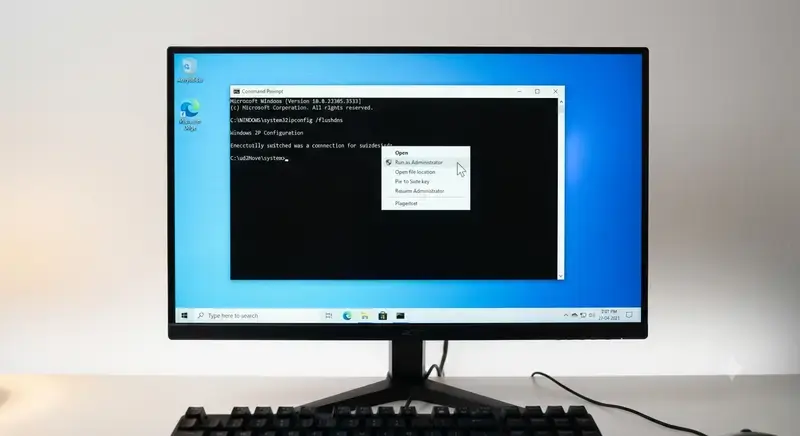
Step 2.2: Flush DNS & Reset IP Stack
- Type 'cmd' into your Windows Search bar, right-click on 'Command Prompt', and choose 'Run as Administrator'.
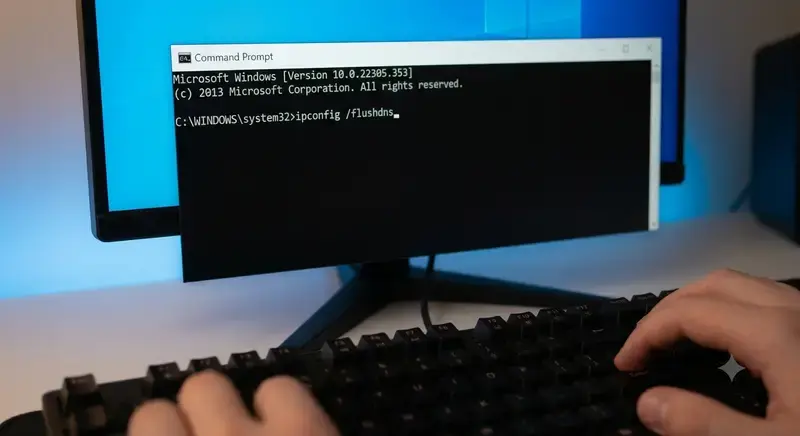
- Execute the following commands one line at a time, pressing Enter after each:
- ipconfig /flushdns
- ipconfig /registerdns
- ipconfig /release
- ipconfig /renew
- netsh winsock reset
3. Restart your computer.
Solution image
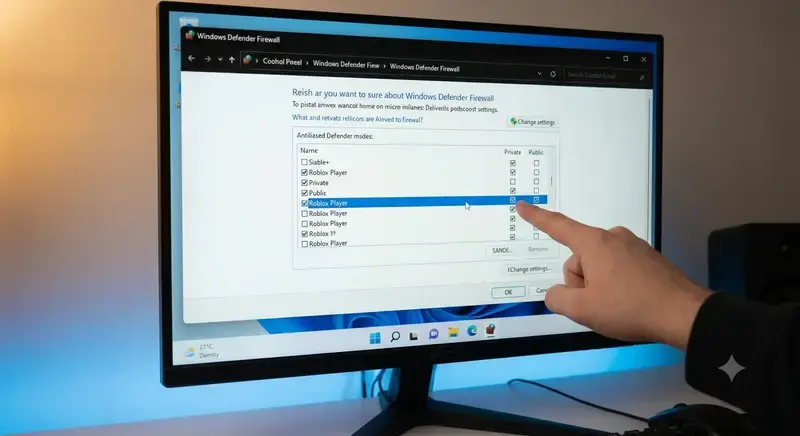
Step 2.3: Whitelist the Roblox Player App
- Open the Start Menu, search for 'Windows Defender Firewall', and click it.
- On the left pane, click 'Allow an app or feature through Windows Defender Firewall'.
- Click 'Change settings' at the top right.
- Look for 'Roblox Player' and check both the 'Private' and 'Public' boxes. If it isn't listed, click 'Allow another app...' and navigate to your fresh Roblox installation path.
❓ Frequently Asked Questions
How long does this fix take?
Most users resolve Error 995 within 5-10 minutes following our step-by-step guide.
Will this work on my device?
Yes! This solution works on Windows, Mac, iOS, and Android devices running Roblox.
What if it doesn't work?
If our solution doesn't resolve your issue, try contacting Roblox Support with your specific error details.